
Emails
It’s now possible to Email through the Acquaint Web App.
You can Email from Contacts and/or Properties, this means you are now able to send Marketing emails or even Property bulletins from a Property.

You will be provided a certain number of Email Credits each month on behalf of Brightlogic for your daily requirements however you will have the option to purchase more if you need to for example for Bulk Sending Emails with Matching.
✉️ Creating an Email in Acquaint
You can send emails directly from a Contact Record or a Property Record, depending on your communication needs.
🛠️ Steps to Create an Email:
Navigate to the relevant Contact or Property record.
Click the hamburger menu (☰) in the top-right corner.
Select Email from the dropdown options.
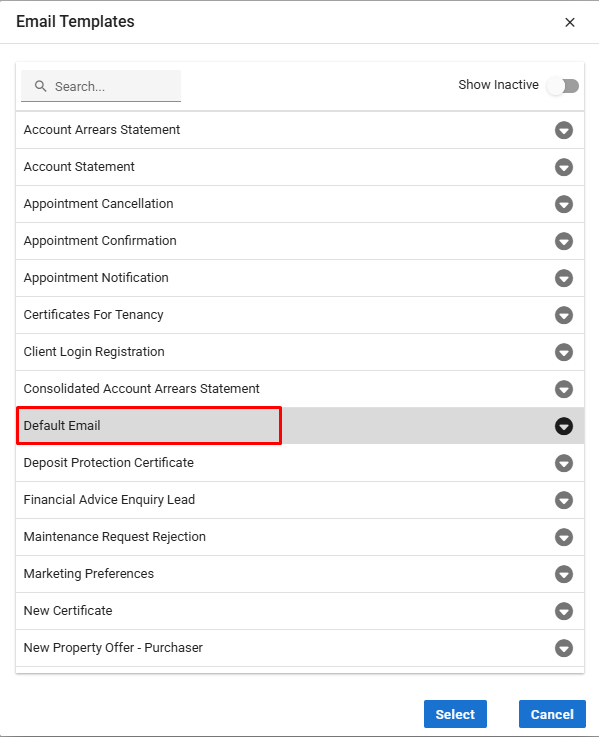
A list of available email templates will appear.
Click on the template you’d like to use, then hit Select.
The chosen template will now open in a pre-filled email editor, ready for review and sending.
✅ Tip: Ensure the correct email addresses are associated with the record for smooth delivery and logging.
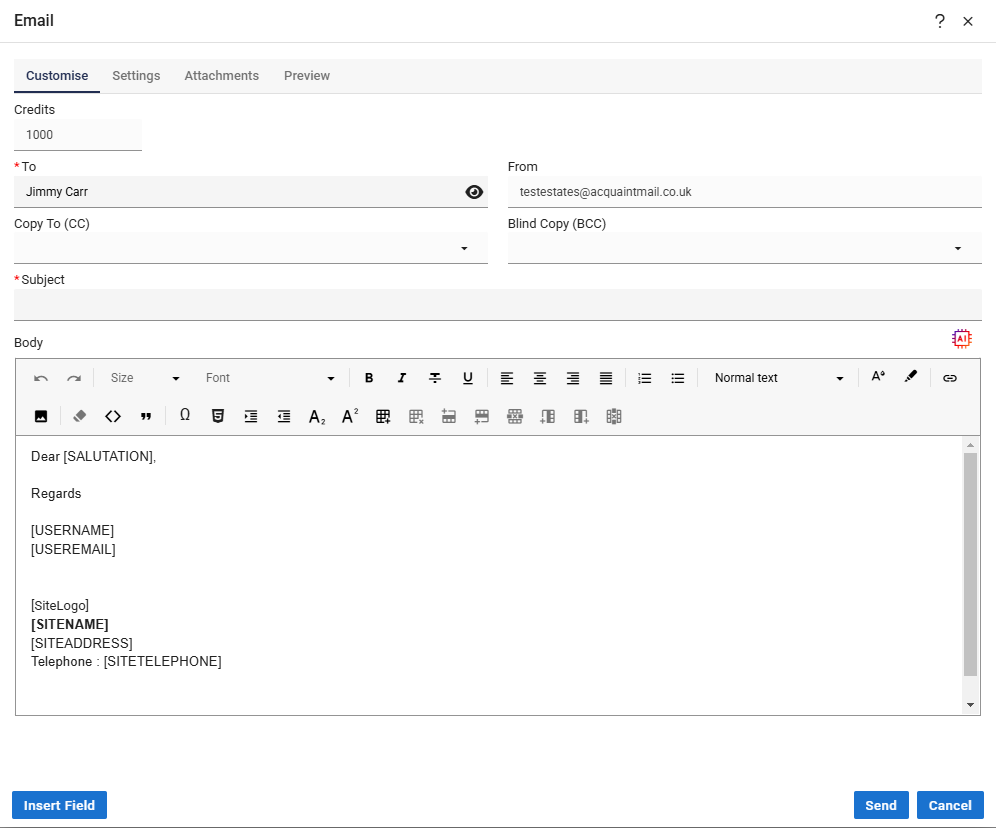
📝 Composing and Sending an Email in Acquaint
Once you’ve selected a template or opened a blank email, follow these steps to complete and send your message:
✏️ Step 1: Add a Subject
The Subject field is mandatory and should clearly reflect the purpose of your email.
💬 Step 2: Write Your Message
Enter your full email content in the body section.
You can personalise the text or build on the selected template.
👀 Step 3: Preview or Send
Click Preview to review how the email will appear to recipients.
When ready, click Send to deliver the email immediately.
📎 Step 4: Add Attachments (Optional)
Use the Attachments tab to upload documents.
You can select multiple files at once for convenience.
✅ Tip: Double-check your subject line and attachments before sending to maintain professionalism and ensure clarity.
Settings
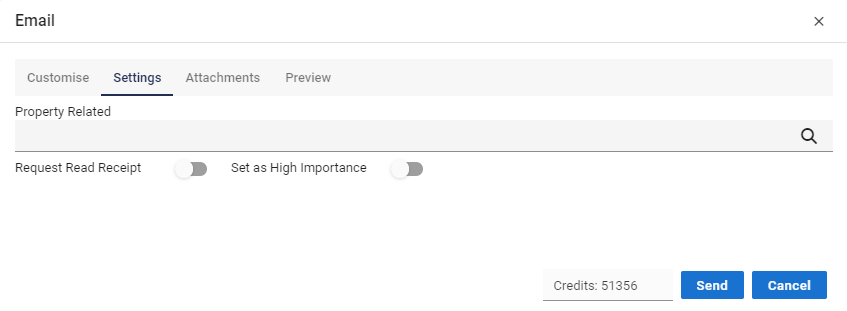
Property Related - filling this in with a Property will allow any Merge Fields to populate that relate to the Property. E.g Property address or Property pictures etc.
Request Read Receipt - Will tell you if the Email has been opened.
Set as High Importance - Sets the Email with an importance icon.
✉️ Emailing Existing Correspondence in Acquaint
You can easily email existing correspondence—such as saved Word documents, PDFs, or previous emails—directly from within a Property, Contact, or Certificate record.
🛠️ How to Send Existing Correspondence:
Navigate to the relevant Property, Contact, or Certificate record.
Open the Correspondence tab.
Select the item you want to send.
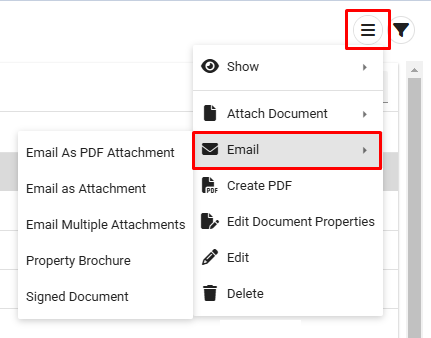
Click the hamburger menu icon (☰) in the top-right corner.
Choose Email from the menu options.
Select your preferred emailing method (e.g., send as attachment, forward as content).
Choose an appropriate email template to attach the correspondence to.
For example, the Default Email template allows you to start with a blank message.
📝 Final Steps
Enter a subject line (required).
Compose your message in the body section.
If needed, attach additional documents using the Attachments tab.
Use Preview to review the email layout before sending.
Click Send when ready.
✅ Tip: This feature is ideal for resending important documents or following up on prior communications with ease.
✉️ Email Correspondence Options in Acquaint
Acquaint allows you to manage and resend email correspondence efficiently from Property, Contact, or Certificate records. You can choose from the following email actions:
🔁 Resend
Re-send a previously sent email to the original or updated recipient.
📈 Useful for follow-ups, marketing campaigns, or reminding contacts of important information.
📤 Forward
Send an existing email to a new recipient or group.
💬 The forwarded email will appear to originate from you, allowing for easy sharing within teams or with clients.
🔀 Redirect
Pass the email to another address while preserving the original sender identity.
🔒 Ideal for internal reassignment or forwarding correspondence without altering the perceived sender.
⚠️ HTML Email Caution
Forwarding HTML-rich emails such as:
Property Details
Property Bulletins
Newsletters
...may cause formatting issues and result in a broken layout for the recipient.

Recommendation: Instead of forwarding, recreate and resend the original message to maintain formatting and presentation integrity.