
Work Order
Work Orders are used to manage and track the progress of maintenance or repair tasks raised against a property. They also serve as the basis for billing work carried out by contractors.
To process payments for completed Work Orders, refer to the Paying Contractors section.
For internal office expenses or bills unrelated to property maintenance, use the Bills function.
Accessing Work Orders
You can view and manage Work Orders from the following locations:
Main tab (left hand side)→ Property Management → Work Order List to view all Work Orders across the system in a single screen.
Contacts Screen Open the Work Orders tab to see all Work Orders associated with a specific contact (only if the contact is set as a Contractor).
Properties Screen Use the Work Orders tab to view all Work Orders linked to a specific property.
Viewing and Managing Work Orders
Work Orders are displayed in chronological order by default, making it easy to track recent activity. You can apply filters to refine the list based on:
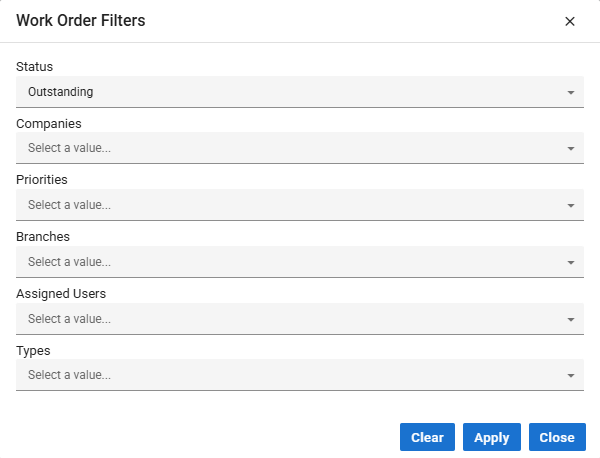
Status
Companies
Priorities
Branches
Assigned User
Types
New Work Order screens via Acquaint Web
You might find that the screens look slightly different to what you are used to in Desktop however we find they are cleaner and easier to use without being confusing to the user.
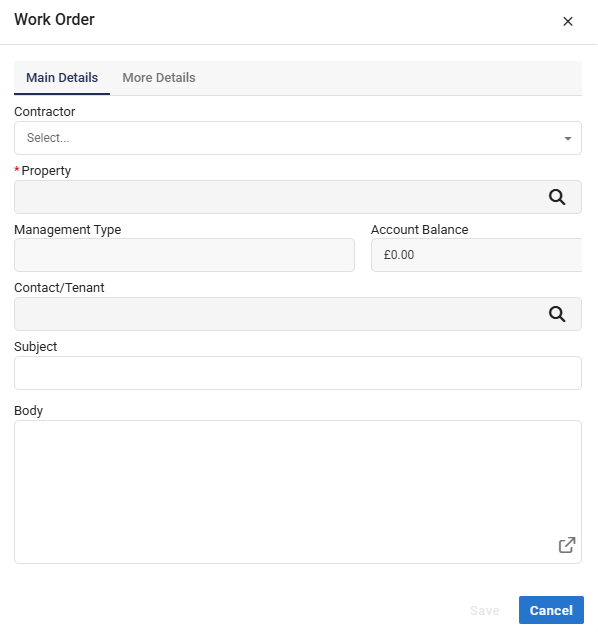
Main Details of the work order include the “key” items of information required:
Contractor name
Property Address
Contact/Tenant
Subject
Body (notes)
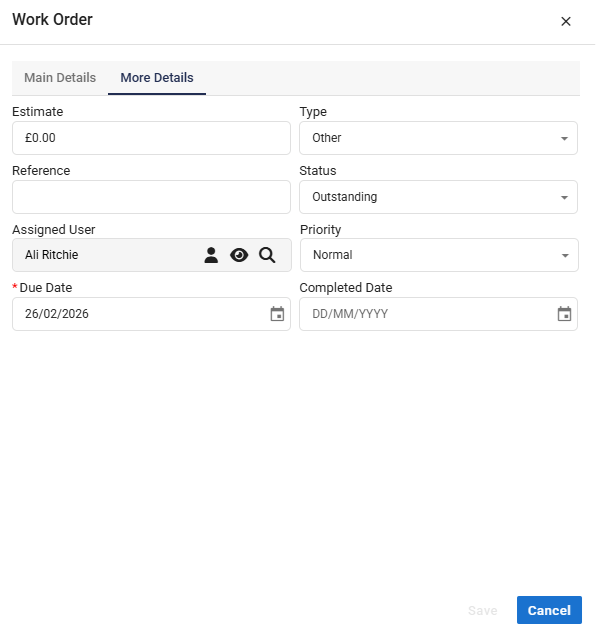
More Details tab includes the fields that agents tend not to fill in as much, these include:
Type
Status
Priority
Completed Date
Due Date
Reference
Estimate