
AI Photo Enhancement
How to Use AI Photo Enhancement
Follow these steps to enhance your property photos using the AI tools.
Open the AI Tools
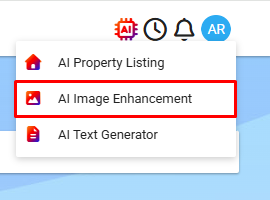
Click the AI Tools button.
Choose AI Image Enhancement from the menu.
Enter Your Property Name
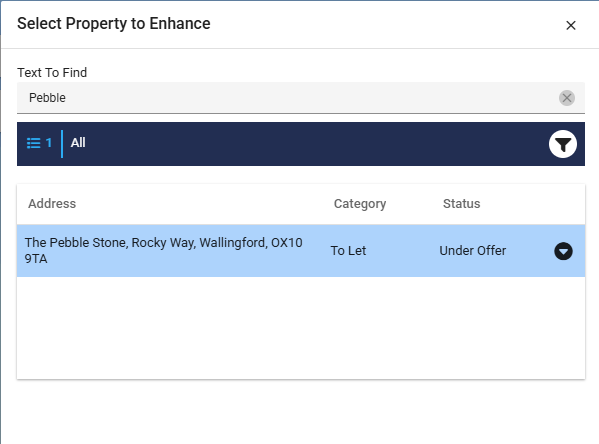
Type the property name into the search bar.
Select your property from the results.

Did you know you can find a property via the ID? Type #[then the property id]
e.g #1000125
Choose a Photo to Enhance
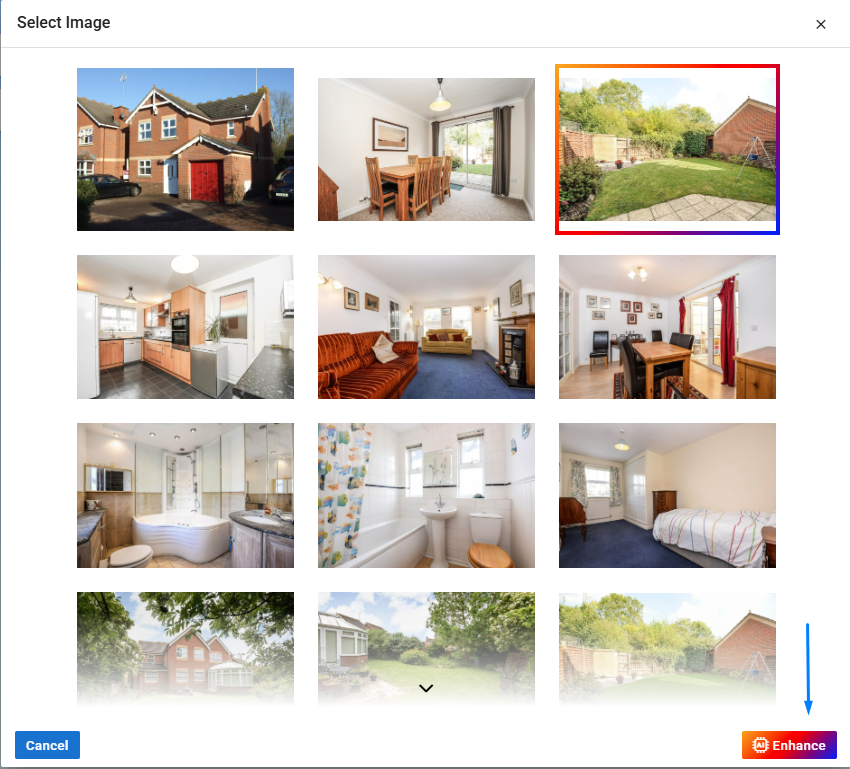
Click on the photo you want to improve.
Apply Enhancements
Click the Enhance button in the bottom‑right corner.
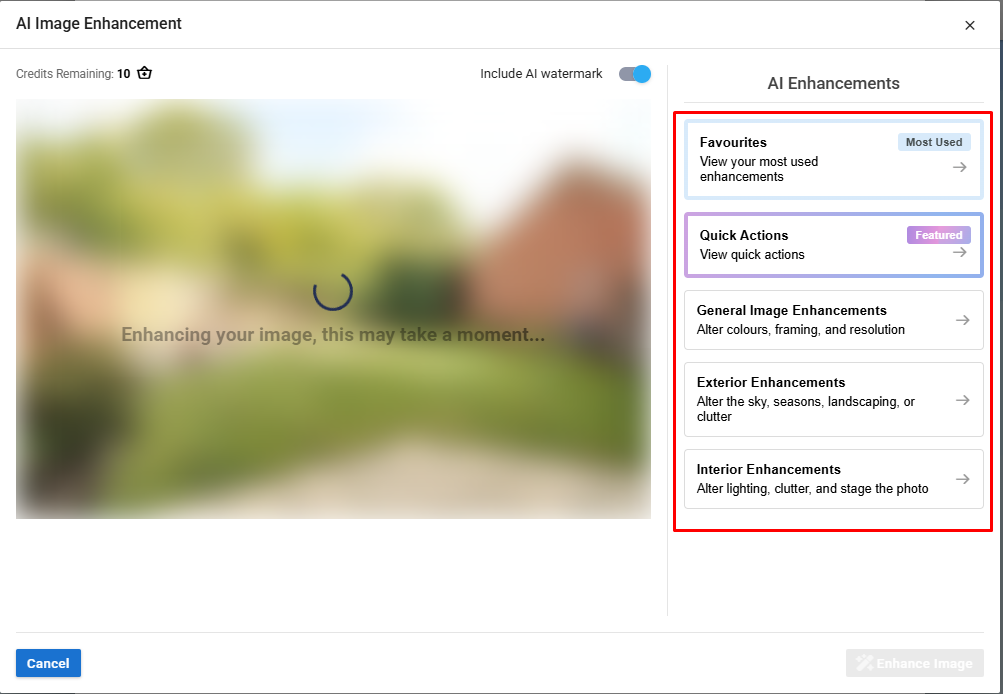
On the right‑hand side, choose from the available enhancement options.
Did you know you can do up to 3* enhancements on 1 image.
Enhancement Categories
Favourites – Your top 5 most‑used enhancements.
Quick Actions – Bundled enhancements designed to save credits.
(See the enhancement table for prompt details.)
Quick Exterior Staging: Quickly stage an exterior by tidying up and beautifying the sky and lighting
Quick Interior Staging: Quickly stage an interior by tidying up and applying warm natural lighting
Declutter Exterior: Remove cars, bins, equipment, people, pets, and estate agent signs
Declutter Interior: Remove visible clutter, personal items and rubbish.
General Image Enhancements:
Colours and Exposure Adjustment - Adjust colours and exposure to be warm and inviting
Digitally Optimise Picture Framing - Slightly adjust framing to optimise the angle of the picture
Increase Image Resolution - Upscale the image for increased clarity
Remove Lens Flares - Remove lens flares and bright reflections from the image
Exterior Enhancements:
Object & Distraction Removal
Remove Cars
Remove Bins
Remove Construction Equipment
Remove Estate Agent Signs
Remove People or Pets
Remove All Clutter
Landscaping & Grounds
Grass Prune and Tidy
Bloom Flowers and Trees
Remove Dead Plants
Sky & Weather
Blue Sky
Dusk/Golden Hour
Twilight
Season Change
Spring
Summer
Autumn
Winter
Interior Enhancements:
Cleaning & Decluttering
Declutter Interior
Clean walls and floor
Remove Cords and Plugs
Furnishing
Clean and Repair Furniture
Remove All Furniture
Repair Walls
Fill Sinks/Bath
Digital Staging
Minimalist Digital Staging
Modern Digital Staging
Luxury Digital Staging
Traditional Digital Staging
Lighting & Atmosphere
Turn on Lights
Light Fireplace
Open Curtains and Blinds
Review the Enhanced Image
The enhanced version will now appear.
You can apply up to three AI enhancements before the image may start to look overly altered.
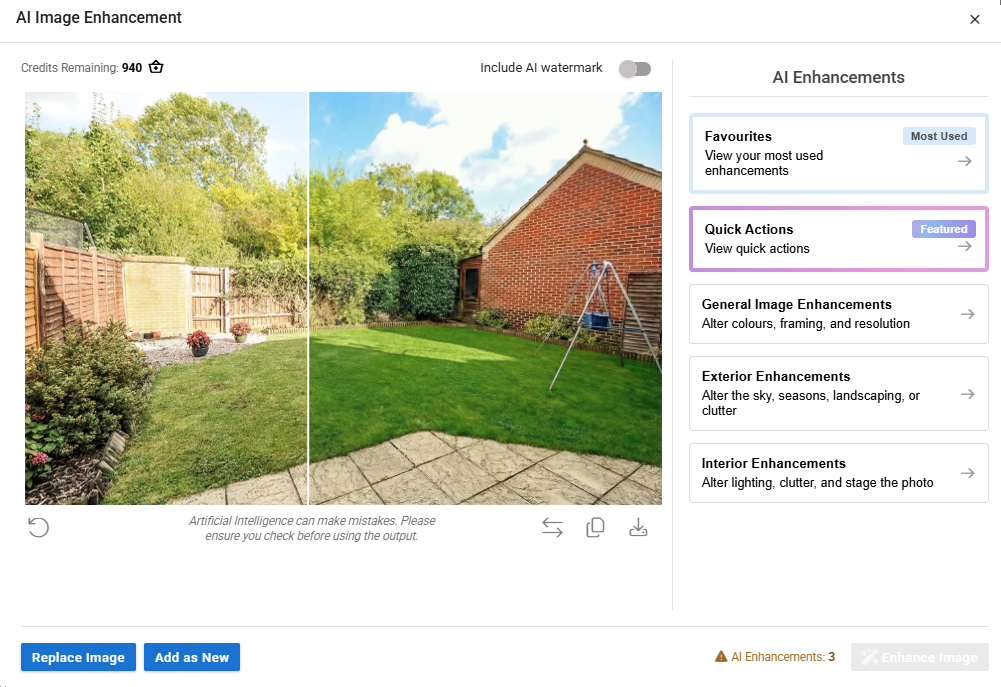

We have used Summer as well as Grass Prune and Tidy and you can see the side by side.

Your image enhancement might error if:
Your image has a watermark (copyright protection may block this)
The content isn't appropriate for our service
Please make sure your image meets these requirements before enhancing. (You will not be charged for enhancements that cause errors.