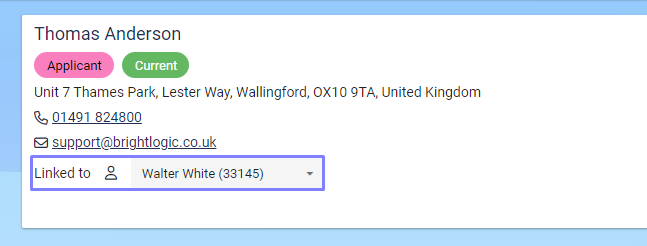
Linking Contacts
Contacts can be linked together to create a relationship, for example two Contacts may be purchasing a Property together. In a relationship of Contacts, one Contact is nominated as the Primary while the other(s) are described as Links.
There are two ways to link Contacts together and to use either you must start from a Contact record.
These options are “Create a Link” and “Link To”.
When using “Create a Link” you are making the Contact you are on a Primary Contact and Adding a Link.
When using “Link To” you are making the Contact you are on a Linked Contact and linking to the Primary.
Option 1 - Create a Link
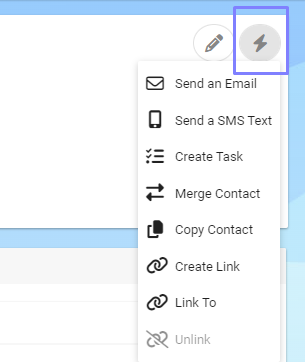
Click on the Action menu
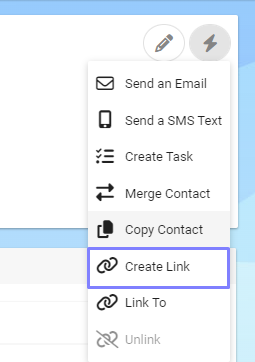
Click Create Link
This will open up the Create Link screen.
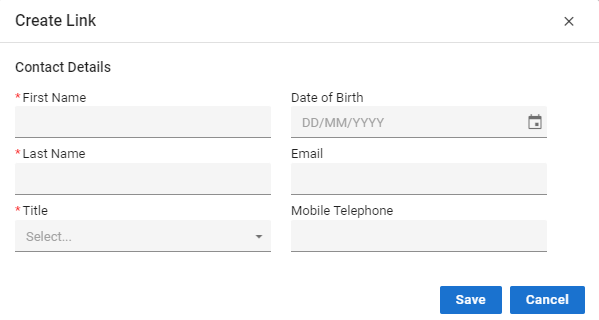
Fill in the Contact Details of the linked person.
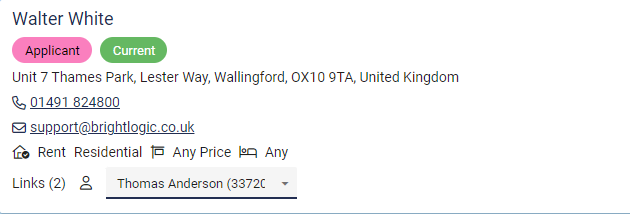
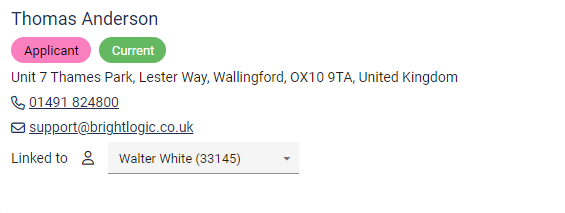

The address will be copied from the Contact you are linking from.
Option 2 - Link To
Click on the Action Menu
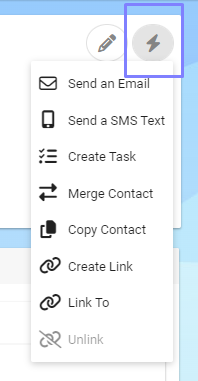
Click on “Link To”
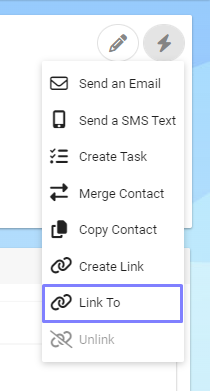
From this menu you will now be able to find the Contact you wish to Link To.
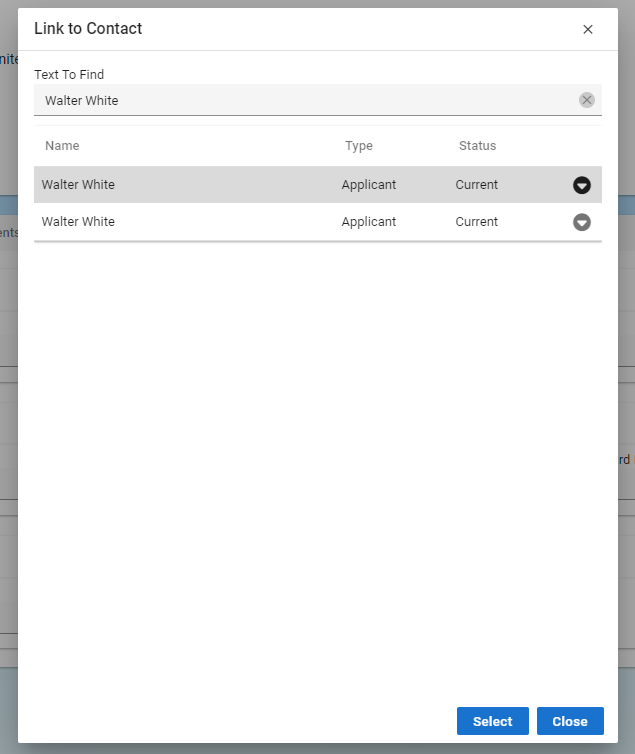
You can either type in a name or use the Contacts ID by using a “#” then the ID number.
E.g #12536
After selecting a Contact to link you will see they are now “Linked to” the Contact you’ve selected.